You can filter and select sections of long jobs in the Job
Summary pane.
- Select a spooled, unprocessed job in Command WorkStation
Held list.
-
Right-click the job and select JobMaster.
-
In the Actions
menu, select JobMaster.
-
Click the JobMaster icon in the Job
Center toolbar.
When the Fiery
JobMaster window opens, if the Job
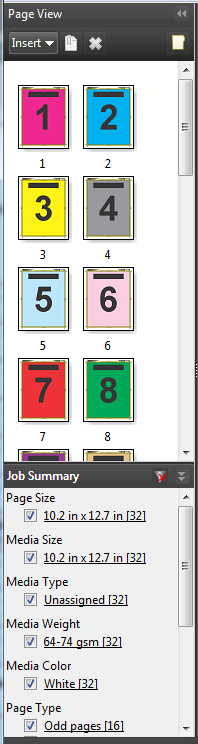
Summary pane is not displayed, click the arrows in the
Job Summary title bar below the Page
View pane.
-
To sort and view pages by a specific attribute,
clear all other check boxes.
For example, to view odd-numbered pages, keep the check box selected.
Note: The display in
Page View changes; the display in
Sheet View does not.
-
Click the hyperlinked name of an attribute to display all the pages with that attribute.
The pages are selected in Page View, and all previous
selections are cleared.
-
To synchronize the selection in Page
View to Sheet View, left-click a selected page in Page
View.
To synchronize the selection in Sheet View to
Page View, you can use alt+left-click on a Windows
computer keyboard or option+left-click on a macOS computer
keyboard.
-
Click the Clear Filter
icon in the Job Summary title bar to select all check boxes and remove any
filters.
You can also select ranges of pages with . You can use the Select Invert command in the
Edit menu to toggle the selection in Page
View. All selected pages become unselected, and unselected pages
become selected.