
Select Pages by Range
The Select Pages by Range option is available in the main Fiery JobMaster window and in the Numbering and Stamps pane.
This feature can be used in combination with the filtering options in the Job Summary pane. Selections made in the Fiery JobMaster window apply in the Numbering and Stamps pane, which you open by selecting Edit Numbering and Stamps from the Actions menu.
-
Select a spooled, unprocessed job in Command WorkStation
Held list.
-
Right-click the job and select JobMaster.
-
In the Actions menu, select JobMaster.
-
Click the JobMaster icon in the Job Center toolbar, if it has been added.
-
-
Do one one of the following:
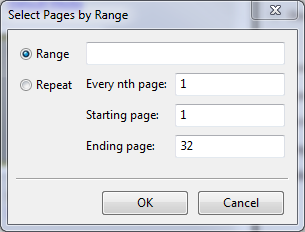
- Click Select Pages by Range in the
Edit menu in the Fiery
JobMaster window. Type
a range using a hyphen to specify a range, and commas to separate individual
numbers, or ranges (for example, 1-9). Alternatively, select the
Repeat radio button and enter the required information.
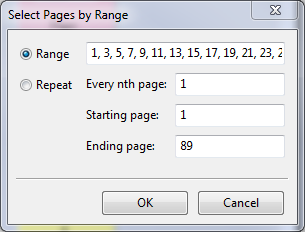
- Select a range of pages by using the filtering options in the
Job Summary pane. For example, select the
Odd Pages check box. Click Select
Pages by Range in the Edit menu.
- Click Select Pages by Range in the
Edit menu in the Fiery
JobMaster window. Type
a range using a hyphen to specify a range, and commas to separate individual
numbers, or ranges (for example, 1-9). Alternatively, select the
Repeat radio button and enter the required information.
If you open the Numbering and Stamps pane, the selected page range will be displayed. You can add more ranges in the Numbering and Stamps pane.