Check for scanned content
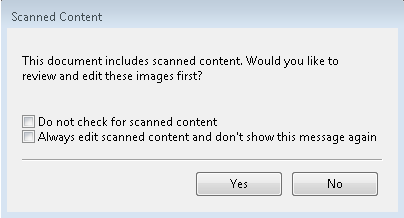
By default, when you insert a PDF document into Fiery JobMaster, the document is checked for scanned content.
If inserted PDF documents contain scanned content and if the preference for checking scanned content is enabled, a message asks whether you want to review and edit the scanned images. Only pages that contain scanned images are presented to you for editing. However, both checking for scanned content and showing the scanned content message are preferences that you can turn off.
Note: If you drag-and-drop a document onto Page
View, Fiery JobMaster does not check the document
for scanned content.
- In Windows, select . On macOS, preferences are under the Fiery Command WorkStation menu within the Fiery Impose or Fiery JobMaster window.
- From the column at the left, select JobMaster.
- Clear the Check inserted PDF documents for scanned content check box.
- Clear the Show scanned content message check box.
If the Check inserted PDF
documents for scanned content check box is cleared, then regardless of
the setting of Show message, the scanned content message will not
be shown because Fiery Impose does not know that there is
scanned content.