
Multiple page layouts do not print correctly
Not all page-setup options work effectively with multiple page layouts.
When printing a document with layout specifications, consider the following:
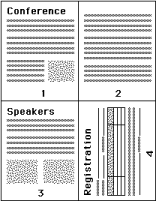
If your application can combine layout, orientation, and scaling settings, and assign different settings for these options to various parts of a document, multiple page layouts print as expected, as shown in the following graphic.
If you request a different resolution, page size, or paper source, or if you request duplex settings for different pages while using a multiple-page layout, Fiery Print Support Application completes the previous request and then starts a new page, applying the currently requested page setup settings. The order of the layout remains the same, but virtual pages of a multiple page layout might appear to be missing. This is because Fiery Print Support Application starts the next set of instructions on a new sheet of paper.
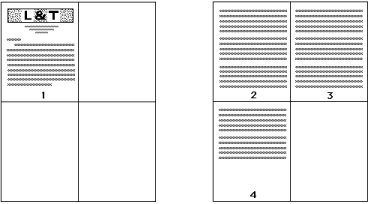
In the following example, the first page of the document prints on the company letterhead, and the remaining pages on standard paper stock from a different paper source.
Some applications let you use only one of the landscape orientations: landscape, not rotated landscape. If a document uses multiple orientations, multiple page layouts might not print as expected.
Some applications might be incompatible with the ability of the Fiery Print Support Application to combine multiple page layout printing with collated copies. This combination of features can produce unexpected print results. It is recommended that you select the collation option in the Finishing icon in the Fiery Print Support Application for collated copies instead of selecting the collation option from the application's Print window.